
Table of Contents
Before you can launch a campaign, you need to connect the accounts Qulify will send from. This includes email accounts and, optionally, LinkedIn.
Account Types #
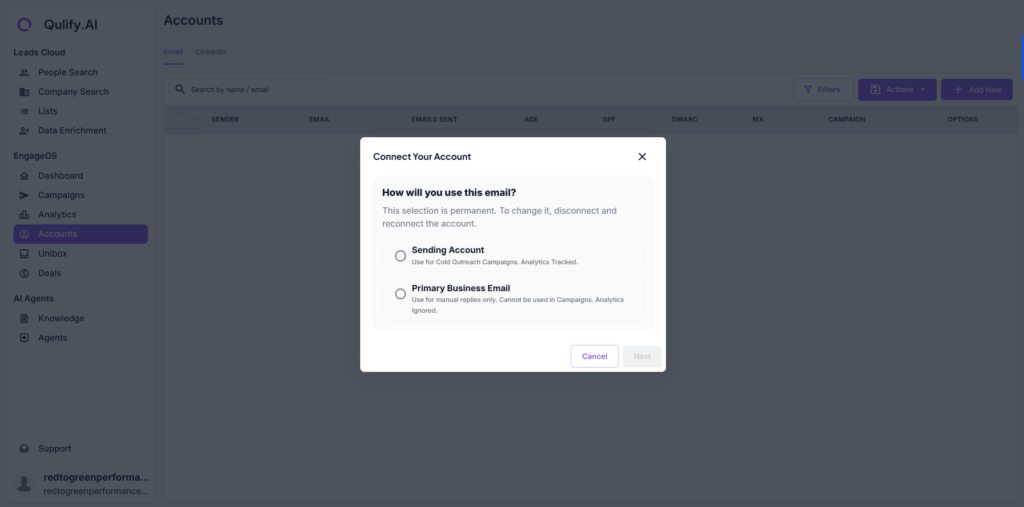
Go to Accounts and click Add New. There are two account types, and the distinction matters:
- Sending Account — used for cold outreach campaigns.
- Primary Business Email — used for replies only.
| ⚠ Warning: Keep these two account types separate. Using your main business email for cold outreach puts your primary domain’s reputation at risk. |
Connecting Email #
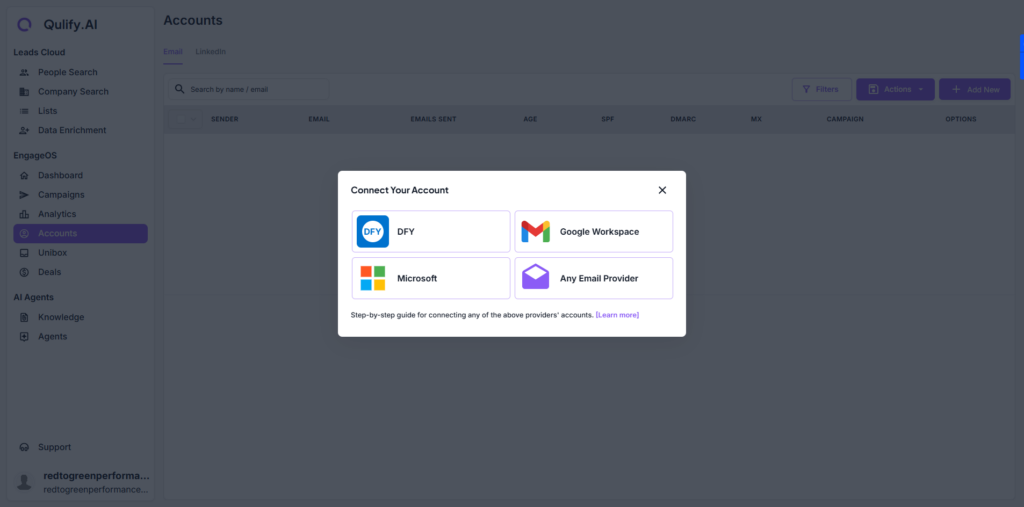
You can connect any of the following:
- Google Workspace
- Microsoft 365
- Any other standard email provider
Done-For-You (DFY) Mailboxes #
If you’d rather not manage mailbox setup and warmup yourself, look for the DFY option. This is an add-on service where Qulify creates and warms up mailboxes on your behalf.
Connecting LinkedIn #
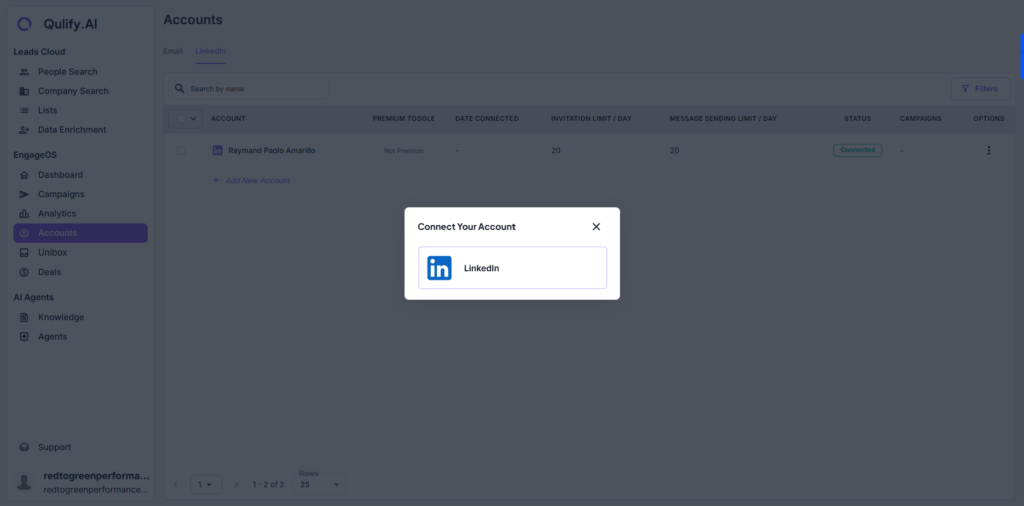
- Click Add New Account under LinkedIn.
- Sign in and connect your account.
Daily Limits #
LinkedIn enforces daily limits to protect your account, and these vary by account type:
- Standard LinkedIn account: 20 connection requests and 20 messages per day.
- Sales Navigator: 50 connection requests and 50 messages per day.
| ⚠ Warning: Don’t attempt to work around these limits. They exist to protect your LinkedIn account from being flagged or restricted. |
What’s Next #
Once your sending accounts are connected, see the Mailboxes & Deliverability guide before sending any cold outreach — a fresh mailbox needs to be warmed up first.


