
With your leads saved to a list, you’re ready to create a campaign and start reaching out. This guide walks through campaign settings, contacts, sequences, replies, and analytics.
1. Create a Campaign #
Go to Campaigns and click Create Campaign.
| ℹ Note: Start with Settings before touching anything else. Getting this right first prevents issues once the campaign is live. |
2. Campaign Settings #
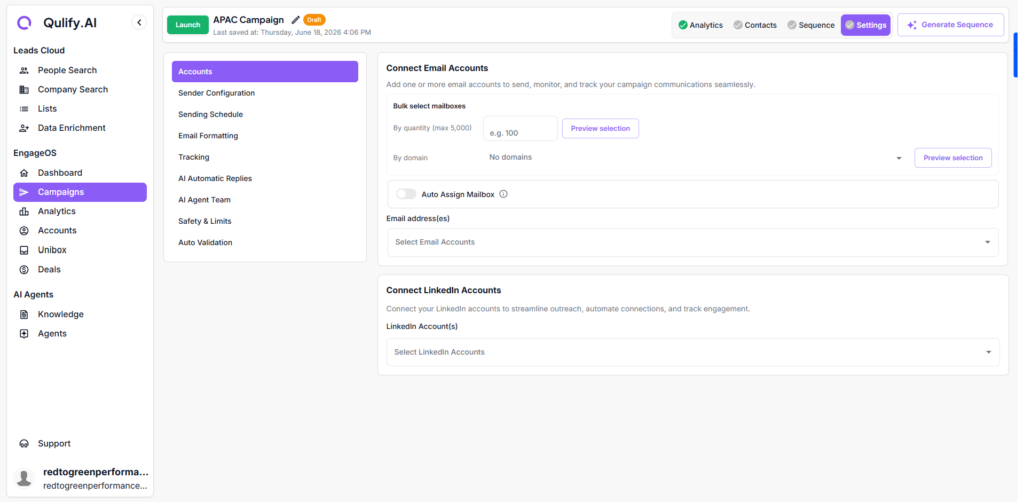
Inside the campaign, go to the Settings area. This is where you configure:
- Sending accounts to use for this campaign
- Your AI agent team
- Safety settings, including daily sending limits and reply handling
3. Contacts #
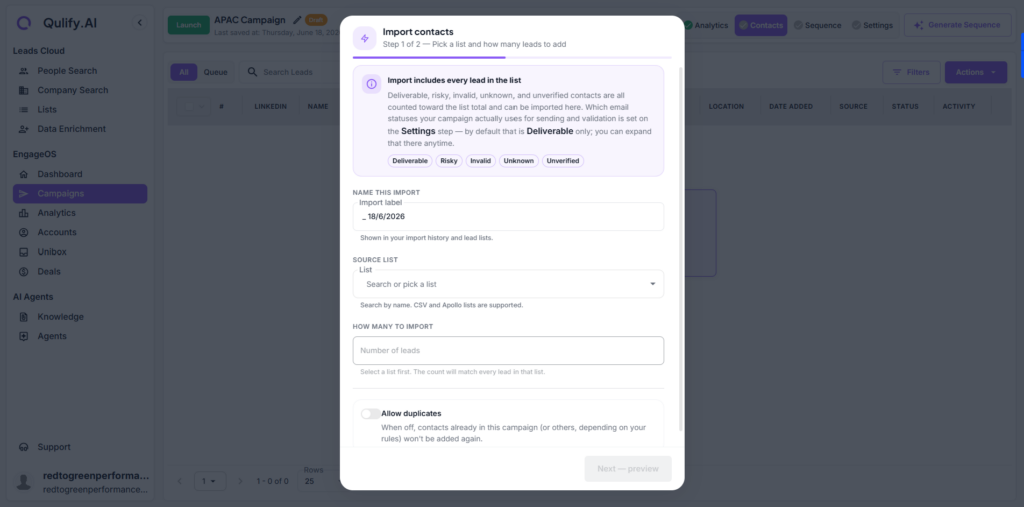
Go to the Contacts section inside the campaign and add the list you created from People Search. Those leads will populate here and are now queued for this campaign.
4. Sequences #
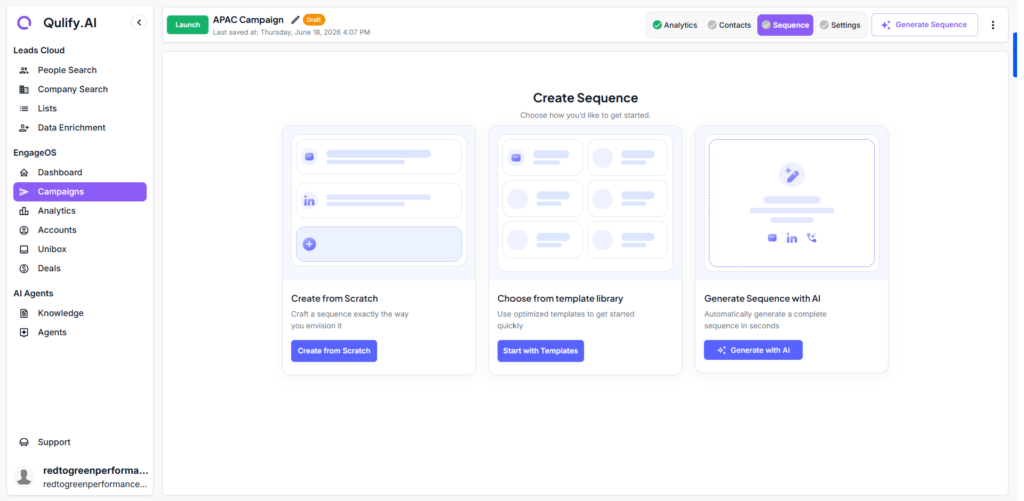
This is where you build your email sequence. You have three options:
- Start from scratch
- Generate a sequence with AI
- Use a saved template from the Template Library
AI-Generated Sequences #
If you generate a sequence with AI, it pulls from your Knowledge Base and the Strategist agent’s instructions to write copy relevant to your audience.
| ⚠ Warning: Always review every email before launching. Confirm the tone is right and nothing sounds generic. |
- Keep emails short, with one clear ask per email.
- Don’t pitch your whole product in the first message — the goal is to open a conversation.
Using Templates #
If you have sequences you’ve used before, go to Template Library. You can save sequences and reuse them in any future campaign without starting from scratch.
5. Unibox & Replies #
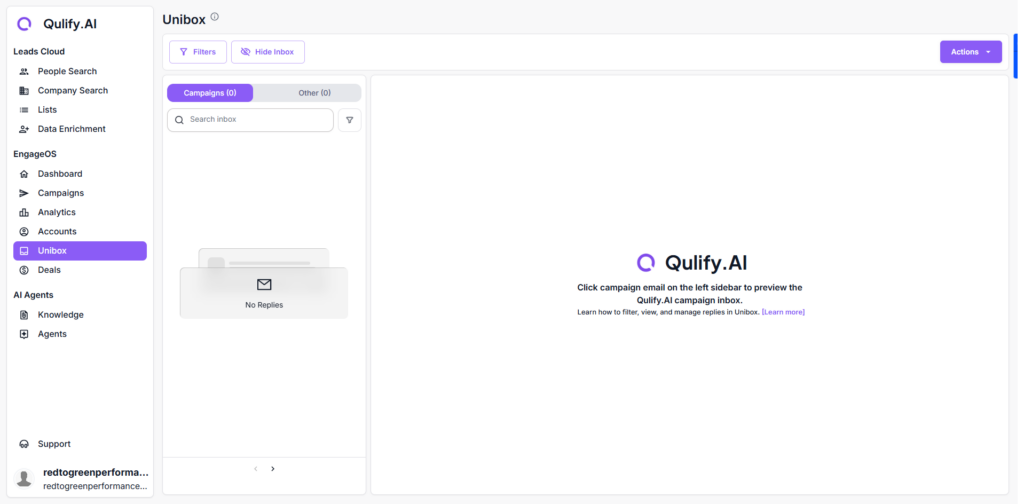
Once your campaign launches, replies come into the Unibox. The AI agent automatically categorizes each reply — for example, as an opportunity, not interested, or out of office.
- Jump in and respond manually whenever you want.
- Or let the agent handle replies based on the instructions you’ve set.
6. Analytics #
To track how a specific campaign is performing, go to Analytics inside the campaign for metrics including open rate, click rate, and reply rate.
Under the main Analytics tab, you can see all of your campaigns in one place, across both email and LinkedIn.
Monitoring Your Campaign #
Watch your open rates and reply rates closely during the first few days:
- Low opens usually point to a weak subject line.
- Low replies usually point to the copy itself.
| ℹ Note: Deliverability issues can also affect both metrics. See the Mailboxes & Deliverability guide for more on keeping your sending domain healthy. |
What’s Next #
Once your campaign is live and performing well, check out Settings & Integrations to connect your CRM and keep your workspace organized.


