
Set up your account, team, and AI foundation before you start prospecting
Welcome to Qulify. If you’ve just signed up, this guide walks you through everything you need to set up before you start finding and reaching out to leads: your account, your team, your Knowledge Base, your AI agents, and your sending accounts.
Once you’ve completed every section below, you’ll be ready to start finding leads. Continue to the Finding Leads with the BDR Agent guide next.
1. Account Details & Team #
Account Details #
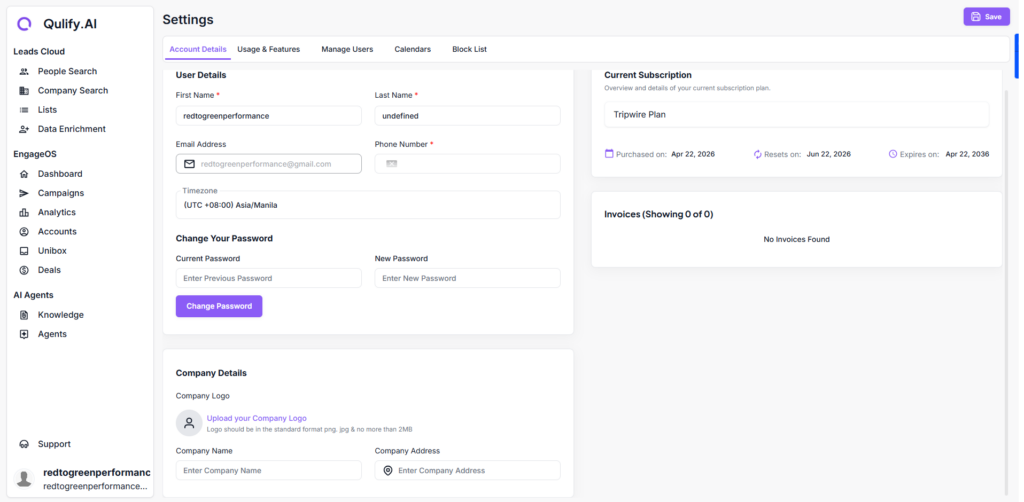
Go to Account Details to fill in your profile information. This page also shows your current usage, available features, and remaining credits.
- Make sure your profile information is complete and accurate.
- Check this page periodically to monitor your credit balance and feature access.
Manage Users #
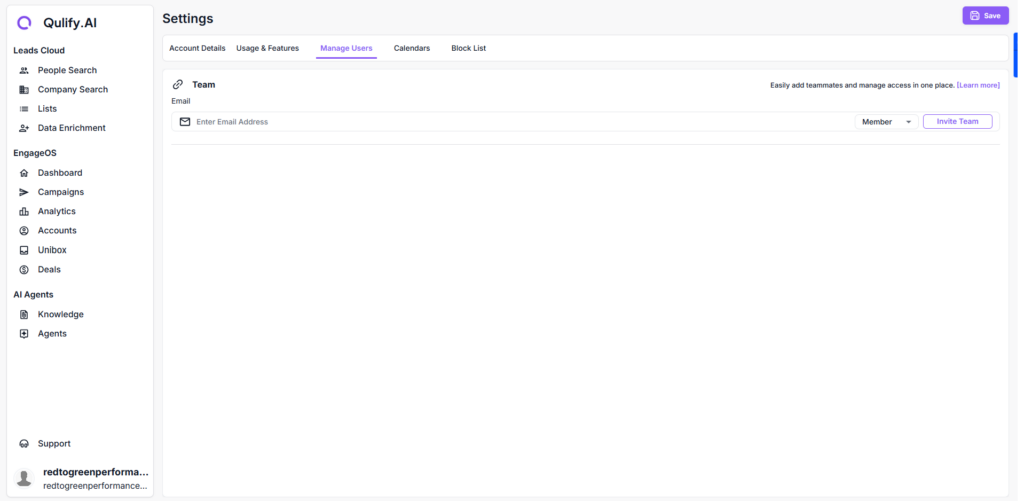
Head to Manage Users to add your team members so they can collaborate inside the platform.
- Click Add User.
- Enter the team member’s email address.
- Set their role.
- Send the invite.
2. Calendar & Blocklist #
Calendars #
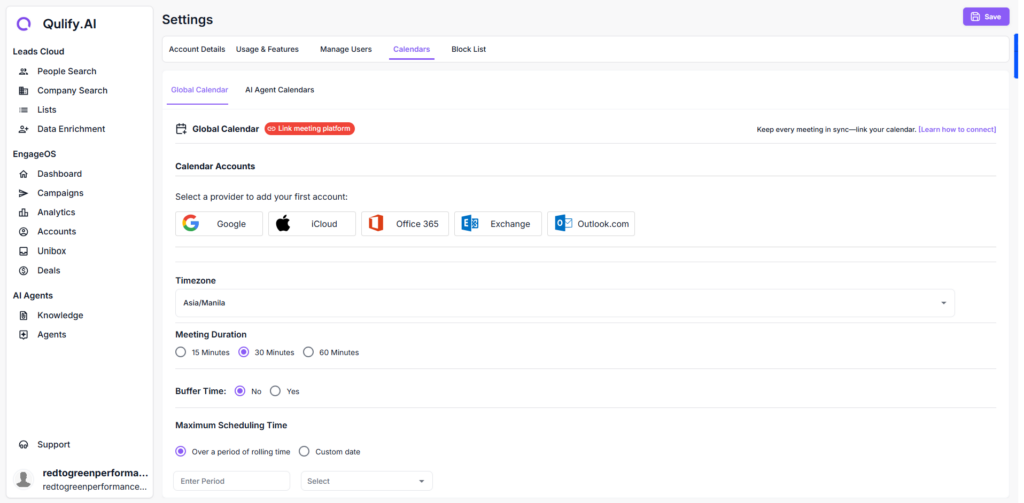
Connect your calendar (Google or Outlook) so your AI agent can automatically book meetings when a lead responds.
- Go to Calendars.
- Select Google or Outlook and follow the connection steps.
Blocklist #
Add any domains or email addresses you never want to contact, or never want to hear from. Common examples include competitors, existing clients, and contacts who have opted out.
- Go to Blocklist.
- Add the domains or addresses you want to exclude.
| 💡 Tip: Set this up now so you don’t have to manage exclusions manually later. |
3. Knowledge Base #
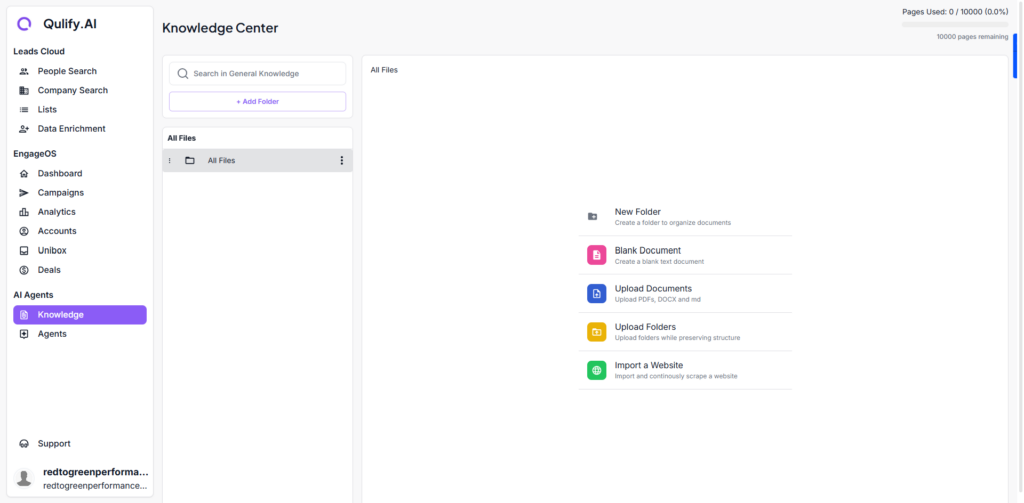
The Knowledge Base is the foundation of your entire operation. It’s where your AI agents pull information about your product, your offer, and your value proposition. The more complete this is, the smarter and more relevant your agents will be.
Setting it up #
- Click on Knowledge Base.
- Create folders to organize content — for example, by product, team, or market.
- Inside each folder, add content such as website copy, case studies, and FAQs — anything that describes what you do and who you help.
| ⚠ Warning: Don’t skip this step. Your AI agents reference the Knowledge Base every time they write an email, so incomplete content means weaker, more generic outreach. |
4. AI Agents #
Once your Knowledge Base is set up, you can create your AI agents. Think of agents as your virtual SDRs — you can create separate agents for different regions, products, or teams, each with its own instructions and copy style.
Creating an agent #
- Go to AI Agents and click Create Agent.
- Give the agent a descriptive name (for example, “APAC Outbound Agent” or “US SaaS Agent”).
- Set up instructions: who the agent is targeting, the tone to use, and the goal of the outreach.
- Open the agent to access its full dashboard, including Instructions, Personality, and other settings that control how it writes emails and responds to replies.
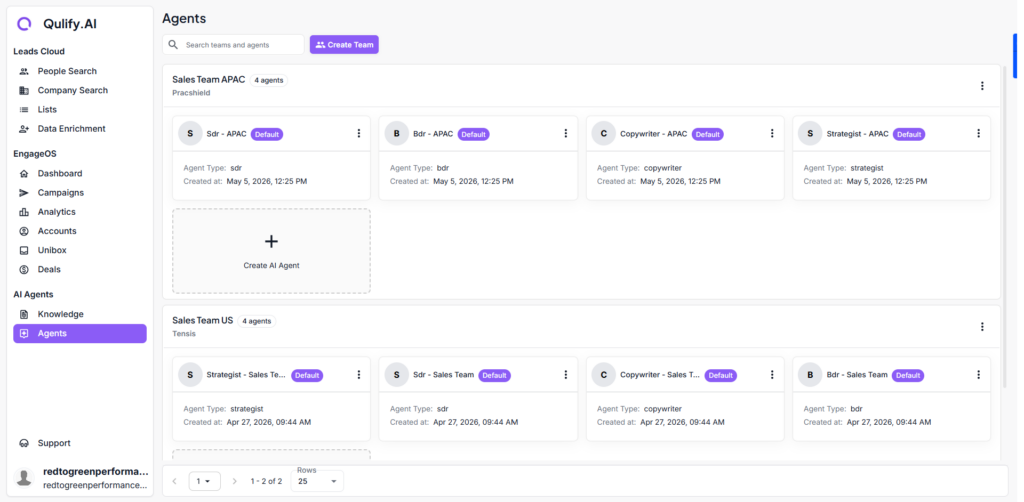
| ℹ Note: Set up at least one agent before moving on — you’ll need it when you build your first campaign. |
5. Sending Accounts (Email + LinkedIn) #
The final step in setup is connecting the accounts Qulify will send from.
Account types #
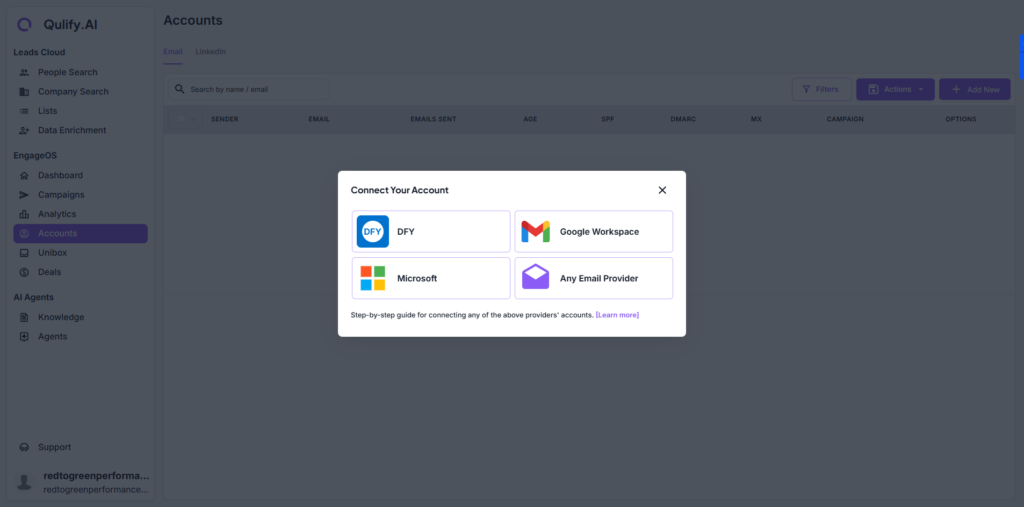
Go to Accounts and click Add New. There are two account types:
- Sending Account — used for cold outreach campaigns.
- Primary Business Email — used for replies only.
| ⚠ Warning: Keep these two account types separate. Mixing them can affect deliverability and how replies are handled. |
Connecting email #
You can connect Google Workspace, Microsoft 365, or any other email provider.
- Look for the DFY option if you’d like Qulify to create and warm up mailboxes for you as an add-on service.
Connecting LinkedIn #
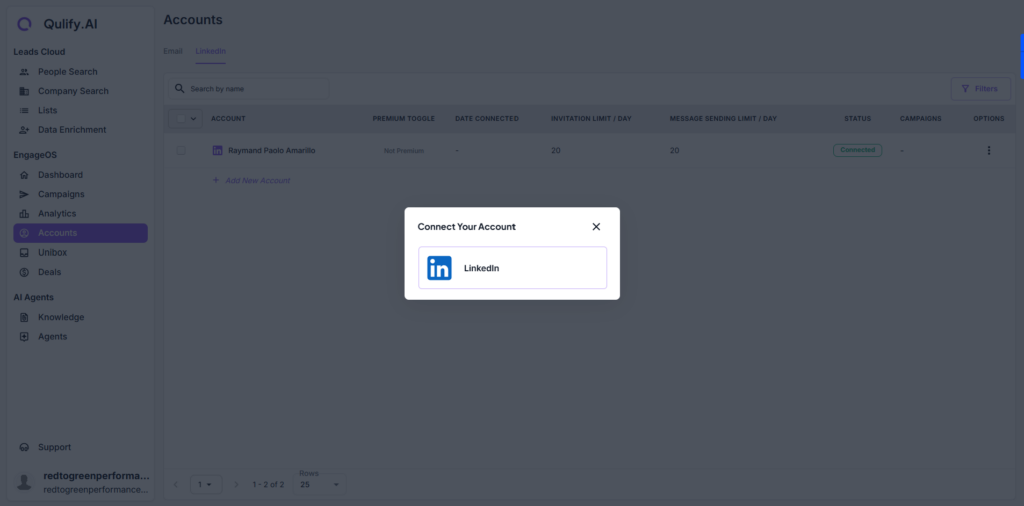
- Click Add New Account under LinkedIn.
- Sign in and connect your account.
Daily limits depend on your LinkedIn account type:
- Standard account: 20 connection requests and 20 messages per day.
- Sales Navigator: 50 connection requests and 50 messages per day.
| ⚠ Warning: These limits exist to protect your LinkedIn account. Don’t attempt to bypass them. |
You’re Set Up #
At this point you should have completed: account details, team setup, calendar connection, blocklist, Knowledge Base, at least one AI agent, and your sending accounts.
Next: head to the Finding Leads with the BDR Agent guide to start building your first lead list.


